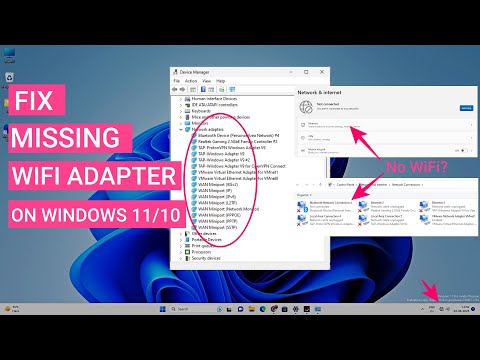
Fix WiFi Adapter Missing In Windows 11/10 | Get Back Wireless Adapter

Sandeep Singh
View ChannelAbout
iTechFever is a tech blog by Sandeep Singh to make tech easier. On this channel, you will get Various tech tips, tricks, reviews, and troubleshooting videos to resolve various computer, OS, and networking problems. I mostly cover Windows, Mac, and Android along with awesome and cool tech tips. I simply find the problem with computers, mobile phones, and other tech issues and create a video solution. All tips and troubleshooting are tested and implemented by myself and verified techniques to troubleshoot the problems, some tips may not work on your system due to different computer configurations. Disclaimers:- 1. Always create a system restore point and full backup before following any Computer tutorials. 2. Any data including names, emails, etc shown in any videos are for demonstration purposes only and do not belong to any third person or entity. 3. Some videos may contain affiliate links, I may get some commission for your purchase without any extra cost to you.
Latest Posts
Video Description
If the WiFi adapter is missing on Windows 11 or 10, then you can easily get it back. Sometimes the Wireless network adapter disappears from the Device Manager, Settings, and Network Adapter list. There might be different reasons behind this issue. In this video, you will find 7 ways to reinstall the missing WiFi adapter and connect to the WiFi network. Apart from installing the adapter, this video will help you to fix the following errors - 1. WiFi adapter missing 2. Can't connect to wifi networks 3. WiFi keeps disconnecting 4. Slow wifi speed 5. WiFi stuck on connecting 6. WiFi unable to obtain IP address 7. Unable to connect to this network 8. WiFi connected but no internet You should try each step; any of the methods should help you to fix the problem. Timestamps 00:00 Intro 00:52 Install WiFi Adapter 03:42 Network Troubleshooter 04:27 Check Network Services 05:18 Fix Socket Errors 06:27 Network Reset 06:56 Power Flush 08:08 Install WLAN Driver 10:41 Outro #WiFi #windows11 #network Disclaimer:- It is advised to create a system restore point or take a complete backup of your device before you follow any tutorials. All tutorials are verified ways to fix, customize, or fine-tune your devices; just in case, take a full backup. This video does not take any expressed or implied guarantee of any particular result. Some links might be affiliate links, and I may earn some commissions on your purchase without any extra cost to you. Any data, IP, emails, and files shown in videos are for demonstration purposes only and do not belong to any third person or entity. Follow on Social Media Facebook - https://fb.com/iTechFever Twitter - https://twitter.com/itechfever Instagram - https://instagram.com/itechfever My IG - https://instagram.com/sparnidya Visit - https://www.itechfever.com
You May Also Like


Essential Gear Upgrade
AI-recommended products based on this video

EMEET C960 Webcam with Tripod, 1080P Webcam with Microphone, Adjustable Height Mini Tripod, C960 Web Camera with Privacy Cover, Plug & Play with Stand for Zoom/Skype/YouTube/FaceTime

COOWPS Switch Case for Nintendo Switch and Switch OLED Model, Portable Full Protection Carrying Travel Bag with 18 Game Cards Storage for Switch Console Pro Controller Accessories Black

UGREEN Revodok Pro 210 Docking Station 10 in 1 USB C Dock Dual HDMI 4K@60Hz Single 8K@30Hz 100W PD 5Gbps USB C and USB A Data Ports Gigabit Ethernet, SD/TF Card Reader USB Hub Compatible for HP, Dell

Anker Power Bank(PowerCore 10K),Compact Travel-Ready 10,000mAh Battery Pack with PowerIQ Charging Technology,5V/3A High-Speed Charging for iPhone,iPad,and More (USB-C Input and Output(Black),1pack) ClimatePartner certified
