How to Use Adobe Acrobat in 2025 – Edit PDFs, Use AI Assistant, and More!

Teacher's Tech
@teacherstechAbout
🌟 This is the channel where tech finally makes sense! I'm Jamie, an avid tech enthusiast and educator, and I'm here to make your journey into tech a whole lot easier. Forget complicated jargon and confusing tutorials. I make beginner-friendly videos that explain tech concepts in plain English, step by step. In today's fast-paced world, the right tech tools can be a game-changer. That's why I'm here! I break down important business and education apps into simple steps, so you can unlock their power and boost your productivity. If you're ready to get started with tech without the overwhelm, make sure to subscribe to my channel 💡
Latest Posts


Video Description
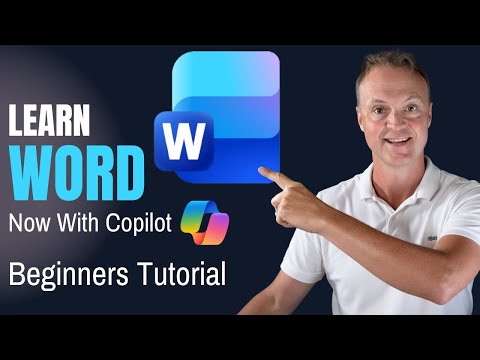
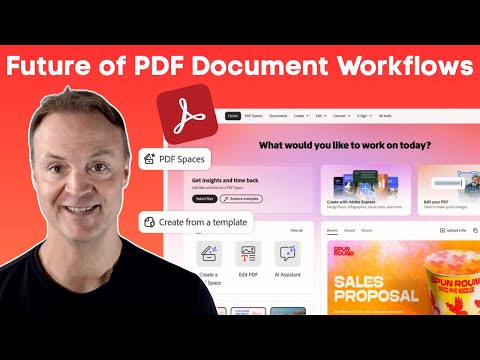
Learn how to use Adobe Acrobat in 2025! Edit PDFs, organize pages, add comments, sign documents, and use AI Assistant to summarize and understand content—perfect for beginners and intermediate users. @AdobeAcrobat 👉 Try Adobe Acrobat Pro for free here: https://go.teachers.tech/Adobe_Acrobat_Free_Download In this step‑by‑step tutorial, I’ll walk you through the key features of Adobe Acrobat, from editing text and images to organizing and exporting your PDFs. I’ll also show you how the AI Assistant can help you work smarter by extracting details, explaining terms, and summarizing long documents. What you’ll learn in this video: ✅ How to edit text and images in a PDF ✅ How to organize, combine, and split PDF pages ✅ How to add comments, highlights, and signatures ✅ How to scan, OCR, and export PDFs ✅ How to use the AI Assistant for research and summaries If you’ve been looking for an Adobe Acrobat tutorial that’s easy to follow, this guide is for you! Perfect for students, teachers, small businesses, and anyone who works with PDFs every day. 00:00 Tired of clunky PDF tools? 00:26 Introduction 02:11 Navigating the Interface 06:04 Editing PDFs with Adobe Acrobat 012:12 Adding Links in Adobe Acrobat 14:00 Use thumbnails and bookmarks 15:12 Organizing Pages 17:19 – Commenting and Markup 21:16 – Signing and Sending PDFs 23:30 – Scanning and OCR 26:07 – Using AI Assistant 28:40 – Exporting, Saving, and Sharing DISCLAIMER: This video and description contains affiliate links, which means that if you click on one of the product links and end up purchasing it, I’ll receive a small commission. This helps support the channel and allows us to continue to make videos like this. Thank you for the support! #adobepartner #AcrobatAmbassador #adobeacrobat








Upgrade Your PDF Game
AI-recommended products based on this video

Magnetic Nasal Strips Starter Kit: Comfortable Nasal Breathing Support for Sleep, Helps Reduce Snoring Noise, Includes 60 Tabs (30 Uses) with 4 Sizes

Environet Hydroponic Growing Kit, Self-Watering Mason Jar Herb Garden Starter Kit Indoor, Windowsill Herb Garden, Grow Your Own Herbs from Organic Seeds (Basil)

Herb Garden Planter Indoor Kit 21Pcs Kitchen Herb Garden Starter Kit Growing Kit Including Wooden Box Burlap Pots Soil Discs Gardening Tools Unique Easter Birthday Christmas Gift Ideas for Women Mom
